
To use Jam for bug reporting, install the browser extension, capture the issue, add clear reproduction steps, and create a shareable report. Jam can include screenshots or video with available console logs, network requests, and device information. Review the evidence, then share the report with developers or send it to an issue tracker such as Jira or Linear.
This tutorial shows the actual capture workflow, what each recording method does, and how to handle missing evidence. The interface images below come from Jam’s published website, not generated mockups.
What Is Jam.dev and How Does It Help With Bug Reporting?
Jam.dev is a screen capture and issue reporting tool for developers, QA testers, and support teams. It brings visual evidence and available browser diagnostics into one shareable report. A recording helps explain what happened, while error messages, user actions, and network activity can help engineers investigate the underlying failure.
Jam can also draft a title, summary, and reproduction steps using AI. Those suggestions still need review. For its currently described capture capabilities, see the official Jam bug capture documentation.
How Do You Install and Set Up Jam?
Install the official Jam extension from the Chrome Web Store, sign in to your workspace, and allow the capture permissions you need. Pin the extension icon for quick access, then make a test recording on a page you control. Confirm that the right workspace is selected before recording private software or customer information.
How Do You Choose a Capture Option in the Extension?
Open the affected page and select the Jam icon in your browser toolbar. The capture menu offers options such as Capture Screenshot, Record Tab, and Create Recording Link. The exact controls can change between product versions, so choose the option that matches the evidence needed for your report.

What Permissions Are Needed for Recording?
Allow access to the browser tab, screen, or microphone only when the selected capture requires it. If a recording starts with a blank display, check which window or tab you shared. Review your browser extension settings when Jam cannot access the page. Avoid capturing unrelated personal messages, login credentials, or financial information.
How Do You Create a Bug Report With Jam?
Capture one problem, explain how to reproduce it, inspect available evidence, and generate the report link. A focused report is easier to investigate than a lengthy recording covering unrelated actions. Follow these six steps in order and verify the result before sharing it with your team.
Step 1. How Do You Prepare the Page?
Open the exact URL where the issue happens and recreate its starting conditions. Record whether the user is signed in, what browser is involved, and any form inputs or permissions required to trigger the failure. These details let another tester reproduce the same situation.
Step 2. How Do You Capture the Problem?
Choose a screenshot for a static visual defect or a screen recording for a sequence of actions. Show the affected element clearly and keep the clip short. For unexpected recent activity, Instant Replay may help when supported and enabled. Do not assume it captures every embedded element.
Step 3. How Do You Add Annotations and Reproduction Steps?
Mark the relevant area and describe the actions leading to the failure. State what should happen and what actually happens. If Jam suggests a summary or steps, check them against the capture. Clear, numbered steps are more useful than a vague statement such as “the website is broken.”

Step 4. How Do You Check Technical Logs?
Review available console errors, network requests, and environment details attached to the report. Failed requests or browser exceptions can help explain the visible failure. The data available depends on the capture method and configuration. If something is missing, document the observable problem manually rather than inventing technical evidence.
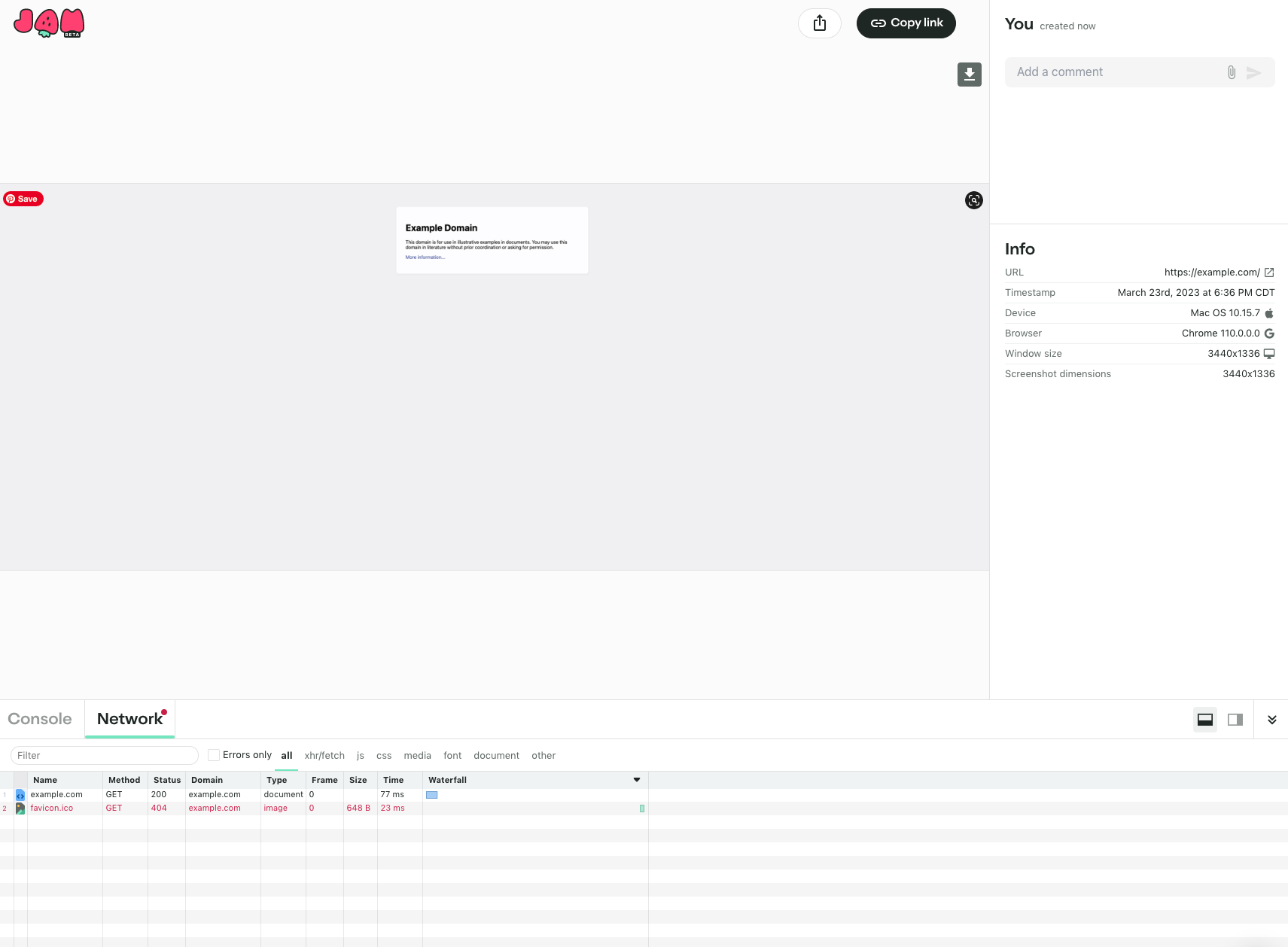
Step 5. How Do You Create the Shareable Report?
Give the issue a specific title, confirm the evidence, and select Create. Jam generates a shareable report that your team can open. Review access permissions before distributing the link, especially if the recording contains private account details or information from a production system.
Step 6. How Do You Share the Report With Developers?
Copy the Jam link into the relevant team conversation or send the report through a configured issue tracker. Include the affected feature and environment. Ask the recipient to confirm access. Sharing the evidence helps an engineer begin investigating; it does not automatically fix the issue.
Which Jam Recording Method Works Best for Each Bug?
Use a screenshot for a single visual state, video for an interaction sequence, and Instant Replay for supported activity that occurred unexpectedly. Recording Links have a different purpose: they let customers or teammates submit recordings without installing the extension. Choose the smallest capture method that proves the issue.
| Method | Best for | Important limitation |
|---|---|---|
| Screenshot | Layout defects and visual errors | Cannot show preceding actions |
| Tab recording | Click sequences and forms | Must be started before reproducing the bug |
| Instant Replay | Unexpected recent browser events | Some iframe and canvas content may not appear |
| Recording Link | Customer and collaborator submissions | Technical logs can require extra setup |
What Should a Complete Jam Bug Report Contain?
A useful bug report contains a title, exact reproduction steps, expected behavior, actual behavior, and supporting evidence. Mention the browser or device when relevant. These details help engineers verify the problem independently and decide what to inspect. Avoid combining several unrelated failures into one ticket.
| Field | Example |
|---|---|
| Title | Checkout button does not submit the order |
| Steps | Open checkout, enter valid details, select Place Order |
| Expected result | Order confirmation appears |
| Actual result | The button does not respond |
| Evidence | Short recording and relevant browser errors |
Before sharing, check screenshots and logs for payment details, session tokens, private messages, and customer information. Remove unnecessary sensitive data whenever possible.
How Do You Send Jam Reports to Jira or Linear?
Connect the supported issue tracker to your Jam workspace, then choose the destination project when submitting a report. Check that the created ticket includes the report link, title, and useful reproduction details. Use the tracker for assignment, status changes, and follow-up investigation rather than creating duplicate reports for the same issue.
Can You Automate Bug Report Routing With n8n?
Automation is possible when the necessary webhooks, permissions, and connected services are configured. A team might route new bug notifications to an appropriate project or notify an on-call developer. These workflows require setup and testing; they are not automatic features of every Jam account. For budgeting an external workflow platform, see n8n Pricing 2026
How Can Customers Submit Bug Reports Without the Jam Extension?
Jam Recording Links let customers and other collaborators submit supported screen recordings from a browser without installing the extension. Create a link, send it to the customer, and ask them to reproduce the problem. The resulting recording appears in the team’s workspace with whatever technical information the configuration supports.
Support teams sometimes collect customer evidence during helpdesk conversations. If that process also uses Intercom, Intercom Pricing 2026: Plans, Fin AI Costs, Add Ons and Real Cost explains the separate expense of operating that support platform. Intercom is not required to use a Jam Recording Link.
How Do You Fix Common Jam Recording and Sharing Problems?
Start by identifying whether the problem concerns recording permissions, missing technical details, or report access. These symptoms have different causes and should not be fixed by repeatedly reinstalling the extension. Use the checks below before creating a replacement capture.
Why Is Jam Not Recording the Screen?
Check Chrome extension access and make sure the correct tab or window was selected. Retry the recording on a page you control. If the issue persists, restart the browser and review the extension permissions. Reinstallation is a later option after simpler checks fail.
Why Are Network Requests or Console Logs Missing?
Missing details may result from the browser environment, recording method, or access restrictions. Try an appropriate capture mode and inspect the report after reproducing the failure. When the log you need is unavailable, provide the visible error and reproduction steps as a fallback.
Why Can’t a Developer Open a Shared Jam?
Confirm that the link is correct and that its permissions allow the intended recipient to view the report. Workspace membership and private report settings may restrict access. Invite the developer through the appropriate workspace controls rather than making sensitive recordings public without review.
Is Jam Free for Bug Reporting?
Jam offers a Free plan with usage limits and paid plans for teams needing more capacity and collaboration controls. Free may be sufficient for occasional bug reports, while frequent QA work can justify reviewing Team features. For detailed allowances and seat rules, see Jam Pricing 2026
For a separate purchasing option, review the Jam Team subscription on Primingo. Confirm the selected seat count, delivery method, account control, and warranty terms before ordering. A paid subscription does not itself improve the quality of poorly documented bugs.
Frequently Asked Questions About Jam Bug Reporting
Can Jam Capture a Bug That Happened Before I Started Recording?
Instant Replay can preserve supported recent browser activity when it was enabled and available. It is useful for unexpected problems, but it cannot reconstruct activity outside its capture scope. Review the replay and record the issue normally if the relevant content is missing.
Can Jam Capture a Hover Menu That Disappears When Clicked?
Yes. Jam’s delayed screenshot controls can help capture hover states. Select an available delay, position the pointer over the menu, and wait for the image to be taken. Annotate the resulting screenshot to show which part of the interface is incorrect.
Can I Use Jam in Chrome Incognito Mode?
Yes, if Chrome permits the Jam extension to run in Incognito mode. Enable access through the browser’s extension settings before opening the affected page. Private browsing does not prevent sensitive material from appearing in a capture, so inspect it carefully.
Does Jam Automatically Fix Bugs That It Records?
No. Jam gathers evidence and can help summarize an issue, but it does not guarantee a software fix. An engineer or connected coding agent must still investigate the cause, change the application, and test the result. Creating a ticket is only part of that process.
Can a Jam Report Be Shared Without Giving Someone Workspace Access?
That depends on the report’s sharing settings and the permissions available to the account. Some reports can be shared through accessible links, while private workspace content remains restricted. Review access settings before sending a recording to an external person.
